- The Cap
- Posts
- Make “one more minute” non-negotiable
Make “one more minute” non-negotiable
6 parental control updates in 10 minutes
Here we go, 2026! We’re officially past the “what day is it?” era of the holidays and into the “why is everyone’s lunchbox already missing a lid?” era of January. Same, friend, same.
As we settle into this new year, we’re stepping into a new stage with tech in our homes. The safety piece is still our foundation (Screen time, safety settings, privacy controls, website blocking… non-negotiables). But the next layer (the one our kids will carry into adulthood) is balance. Not “no devices or internet access ever,” because technology isn’t going anywhere. It’s teaching our kids to exist and be healthy with their devices instead of being run by them. Self-awareness, boundaries, and actual little habits they can repeat when we’re not around.
Here’s a quick example: most of us wildly underestimate how often we pick up our phones. That number represents the tiny interruptions that hijack our mood, our productivity, and our relationships. If you’re not sure how to check your pickups, check it out here.
—Cat & Nat


New iOS Screen-Time Updates (what parents can actually do)
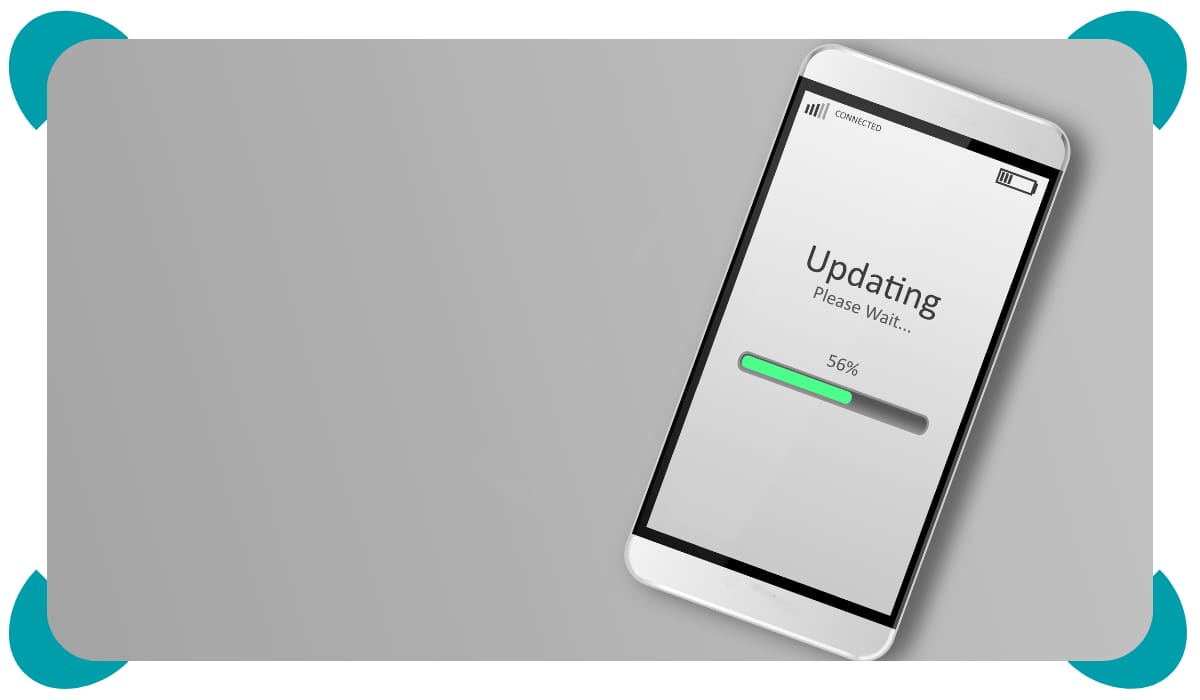
We’ve been hands-on with the latest iOS roll-out, and there are a few parent-friendly upgrades that make limits clearer, DMs safer, and “one more minute!” a little less negotiable. Here’s what you’re able to do once your Apple devices are on iOS 26:
1) You can finally block an app completely
Before, the lowest app limit was 1 minute. Now you can set an App Limit to 0 minutes to fully block a specific app.
Find it here: Settings → Screen Time → [your child’s device] → App Limits → Add Limit → pick the app → set to 0 and turn on Block at End of Limit.
2) In-app browsers behave better with Downtime
A lot of apps sneak in their own mini-browser. With the new behaviour, if Downtime is on, those in-app web views are blocked too so you don’t have a back-door to the internet when Safari is supposed to be off.
Find it here: Settings → Screen Time → Downtime → set custom hours. (Leave only essentials on “Always Allowed.”)
3) Family Sharing/Managed Screen Time is smoother
It’s easier to bring your kid’s Apple ID into your Family and manage limits remotely. This is helpful for teens who “forget” to hand you their phone.
Find it here: Settings (on your phone) → [your name] → Family → add your child → turn on Screen Time for them. You can manage it from your device after that.
4) You can manage your child’s Contacts
This helps with Communication Limits (who they can message during Screen Time/Downtime). Parents can now view/add/remove contacts for a child account.
Find it here: Settings → Screen Time → [your child] → Communication Limits → toggle Manage [child’s] Contacts. (You can also disable “Allow Contact Editing.”)
5) Heads up: Private Browsing isn’t auto-disabled by “Limit Adult Websites”
If you rely only on “Limit Adult Websites,” Safari’s Private tabs may still be available. Two stricter options:
Set Web Content to Only Allowed Websites (you can maintain a small allow-list).
Find it here: Settings → Screen Time → [your child] → Content & Privacy Restrictions → App Store, Media, Web & Games → Web Content.
6) App age ratings are clearer (now includes 16+ and 18+)
Use the updated ratings to gate what can be installed or opened.
Find it here: Settings → Screen Time → [your child] → Content & Privacy Restrictions → App Store, Media, Web & Games → Apps → choose the age rating.
Reminder: Tech isn’t fool proof. While these tools are a great improvement, its still important to remain vigilant and plugged into your child’s tech use.
AI Deepfakes (and the talk our kids need)

Last week we covered what’s happening on X where bad actors are using Grok’s image tools to churn out sexualized fakes of real people. That extreme example shines a light on our own family digital footprints: those birthday pics, team photos, and goofy Reels can be pulled into AI, remixed, and shared in humiliating or worse, sexualized ways that linger. We’re not quitting the internet, but we can share more thoughtfully and lock down settings so fewer images are available to misuse. Here are some tips for reducing your family’s digital footprint:
1) Set the family rule: “In our house, we don’t mess with anyone’s image, real or AI. If something sketchy shows up: Stop, screenshot, say something, but don’t share.”
2) Lock the easy doors:
Private accounts: prune followers to people you actually know.
Tag approvals on: Set your DMs to Friends/Following only.
Turn Downloads/Save to device off: set TikTok Duet/Stitch = Off (or Friends).
3) Tidy the photo pipeline:
Review Shared Albums/iCloud Shared Library: keep sensitive stuff out or delete old shares.
Kill precise location on photos: turn off Precise Location for the Camera app; when sharing, remove location from photos.
Google Photos/Drive links: switch old public links to restricted.
4) Post smarter: Use avatars/group shots on public profiles: add a light watermark on public face photos. Skip viral AI/photo apps that use uploads for AI training.
5) Give them words: To a friend: “Not okay, please delete. I’m out.” If pressured: “No, I’m not doing that. Don’t ask again.”
6) Response plan:
Don’t engage. Screenshot handles/links/timestamps, save, report (platform → school). If inappropriate content of a minor is involved, escalate to law enforcement. Your kid keeps their phone; you handle the adult parts together.
We cover deepfakes in depth inside the Screen Sense Guide including red flags, reporting/takedown checklists, school templates, and a short conversation scripts centred on empathy, accountability, and long-term consequences.

January’s got us hunkered down hard over here since Toronto’s weather has been a whole mood. We’re seeking to find any reason to get cozy to stay warm as long as possible. Fuzzy socks, sweatshirts, dog cuddles… so truthfully, most of our best productivity time lately is happening from the couch with a kid tucked beside us.

Which is why we’re obsessed with our lap desk right now. It’s perfect for you (emails, meal plan, paying that random camp deposit) and our kids love using it for homework while they’re snuggled up next to us (and the dog). Pair it with a 25-minute timer and watch the focus magic happen. Here’s the link for our US & Canadian friends.
Catch you next week!
—Cat & Nat
